

Account and address format
The University creates an institutional Microsoft student email account for enrolled students. Microsoft Teams uses this account; students do not need to create a separate Teams account.
First use and password update
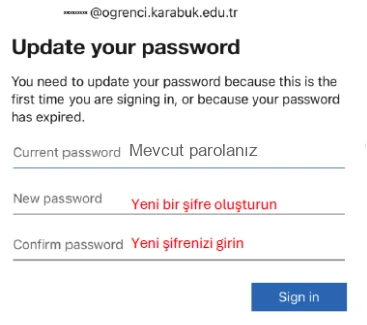
When using the institutional account for the first time, Microsoft 365 may require you to set a new password after entering the current initial password.
Open student email in Outlook- 01
Sign in with your institutional student email address through Outlook or the Email link on the University website.
- 02
When the initial password is requested, enter the password described under “Initial password” above.
- 03
If Microsoft displays a password update screen, enter the current initial password and create a new password known only to you.
View Illustrated Steps
Example screens from the university guide. Menu names, appearance and available verification methods may vary by account and app version. Select an image to open it at full size.
Security verification
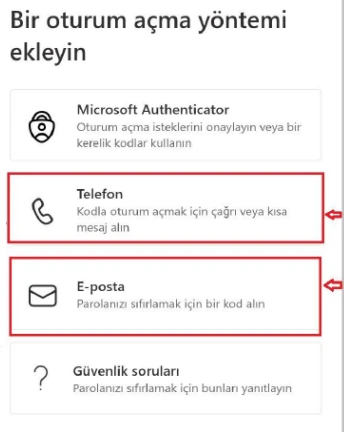
During first use, you may be asked to register a phone number and set up Microsoft Authenticator for security verification.
- 01
When Microsoft asks you to add security information, select a verification method offered for your account. If Authenticator is required, complete the setup instructions in the app.
- 02
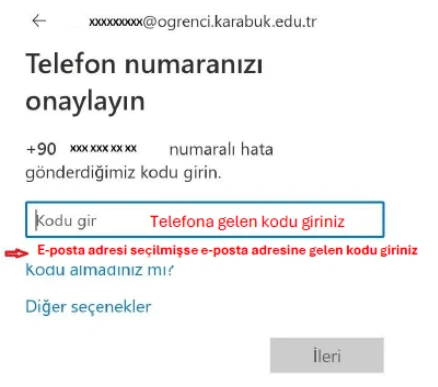
If the phone method is available, select your country code. For Turkey (+90), enter the phone number without the leading 0.
- 03
Enter the text-message or voice-call code only on the Microsoft verification screen. If personal email is available, use an accessible address different from your university account.
- 04
Confirm that the method has been added to your account. If you cannot access the account or update the method, contact the Student Affairs Department.
View Illustrated Steps
Example screens from the university guide. Menu names, appearance and available verification methods may vary by account and app version. Select an image to open it at full size.
Password reset and account support
To reset the password through Microsoft, a phone number must already have been registered on the account. If no phone number is registered or the reset cannot be completed, contact the Student Affairs Department.
Open Microsoft password recoveryFrequently asked questions
Are my Microsoft student email and Microsoft Teams accounts different?
No. Microsoft Teams uses the institutional Microsoft student email account assigned by the University. If you cannot access the email account, Teams access is affected as well.
Do I need to create my student email account myself?
No. The University creates and activates the institutional Microsoft student email account for enrolled students.
How do I determine my student email address?
The address is your student number followed by @ogrenci.karabuk.edu.tr. For example, student number 123456789 corresponds to 123456789@ogrenci.karabuk.edu.tr.
I receive a “user does not exist” error.
First confirm that you entered the institutional address assigned to your student number and did not use a personal email address. If the address is correct and the error continues, the student email account needs to be checked.
I forgot my password; how can I reset it?
Microsoft self-service reset requires a phone number to have been registered previously. If no phone number is registered or reset fails, contact the Student Affairs Department.
I receive a Microsoft Authenticator verification error.
Check that your phone number is registered on the account and that Microsoft Authenticator setup is complete. If the issue continues, contact the Student Affairs Department.