

Sign in with the institutional account
Sign in to Microsoft Teams with the institutional Microsoft student email account assigned to your student number by the University.
Timetable and team code
Check the live-class timetable in OBS. Microsoft Teams team codes and required course information are announced through OYS or OBS. The team code is created by the course instructor.
Check your course timetable in OBS and follow OYS and OBS announcements for changes affecting your course.
- 01
Check the date and time of the live class in your OBS timetable.
- 02
Check the OYS course page and announcements for the Teams team code; check OBS when necessary.
- 03
If no team code or class link is available, contact the course instructor first.
View Illustrated Steps
Example screens from the university guide. Menu names, appearance and available verification methods may vary by account and app version. Select an image to open it at full size.
Joining a live class
Live classes are conducted through Microsoft Teams. Join the correct Teams group at the day and time shown in the course schedule.
Open Microsoft Teams- 01
Open Microsoft Teams and sign in with your student institutional account.
- 02
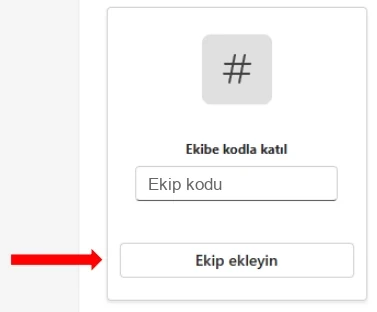
Use the option to join with a team code and enter the course code obtained from OYS or OBS.
- 03
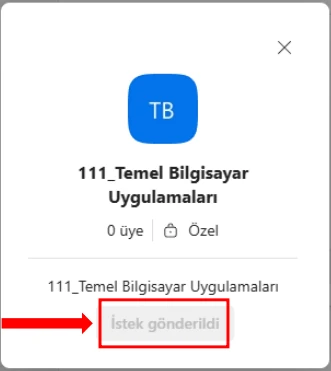
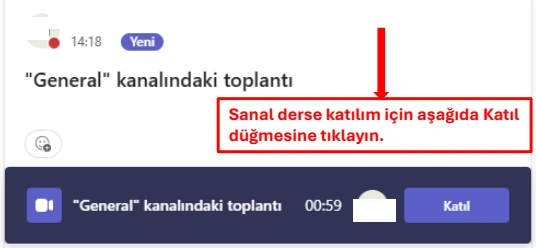
After joining, verify the team name and course information and use the live class link at the scheduled time.
- 04
Check your microphone and camera before joining. Keep them off when you first enter and follow your instructor’s directions.
View Illustrated Steps
Example screens from the university guide. Menu names, appearance and available verification methods may vary by account and app version. Select an image to open it at full size.
Common situations
Will a team code or class link be sent to me separately?
The unit does not separately send team codes or class links to students. The course instructor creates the team code and the required information is announced through OYS and OBS.
The course is in OYS but the Teams team is not visible.
Check the course announcements for a team code or link first. If no information is available, contact the course instructor.
Where should I check the live-class time?
Check your live-class timetable in OBS. OYS course announcements may also contain current course-specific information.
I cannot register for e-Attendance.
Contact the course instructor first. If the issue continues, contact your department’s e-Attendance responsible person or your department.
Technical support
For a technical issue with distance education, OYS or Microsoft Teams, send a detailed email to the KBUZEM support address.
- Your full name
- Your student number
- The system or course where the issue occurs
- A detailed description of the issue
If possible, attach a screenshot of the error message as well.
Do not share your password or verification code in a support request. Hide personal information unrelated to the issue in screenshots.
YÖK Common Courses
Announcements and resources for Foreign Language, Turkish Language and Atatürk’s Principles and History of Revolution common courses.