Core OYS procedures for students are grouped below.
Contents01
Sign-in and account access
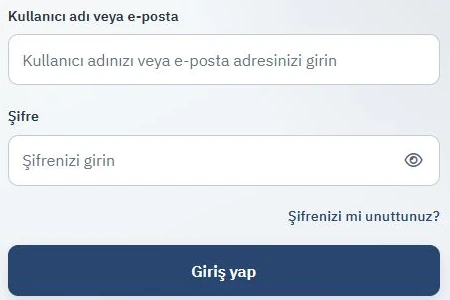
Students sign in to OYS with the institutional account created for them. The username is the institutional email address assigned to the student number.
Usernamestudentnumber@ogrenci.karabuk.edu.tr
Initial password
View Illustrated Steps
Example screen captured from the live OYS site. Appearance may vary by language and account permissions. Select an image to open it at full size.
Sign in with your username or email. The forgotten password link is in the same form.
If you forget your OYS password
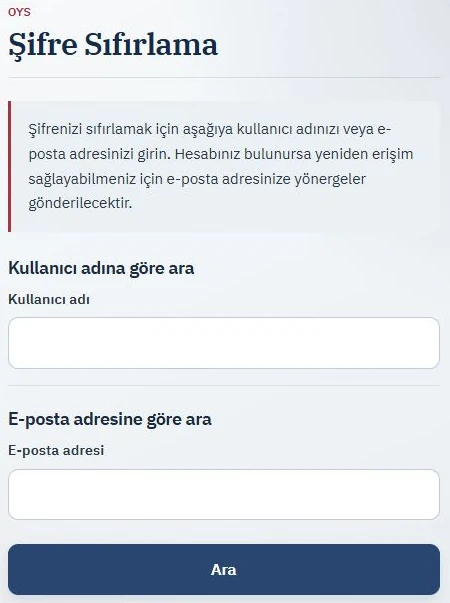
Use the password reset link on the OYS sign-in screen and follow its instructions. If you are expecting a reset email, also check your spam folder. For your Microsoft student email and Teams password, use the reset route in the Student Email guide.
Example screen captured from the live OYS site. Appearance may vary by language and account permissions. Select an image to open it at full size.
Search using your username or the email registered in your account; you do not need to fill in both.
Profile and notification preferences
Open your profile from the user menu at the top right. Check editable fields in Profile and notification or language options in Preferences. Contact the responsible unit if a field managed through institutional records cannot be changed.
NoteA missing course does not always indicate an account problem. Course registrations and student-course mappings may be updated according to academic processes.
02
My courses and course content
After signing in to OYS, you can access registered courses through the workspace and My courses area. Availability may vary by term and course settings.
Viewing coursesOpen registered courses from My courses and enter a course page through its course name.
FilteringWhen many courses are listed, use the available filters to separate ongoing, future or past courses.
Course contentFiles, links, announcements and learning activities published by the instructor appear on the relevant course page.
Favourite coursesWhen starring is available, mark frequently used courses as favourites for quicker access.
My course is not visible.
Check that course registration is complete and that the student-course mapping has been created. Beginning-of-term mappings may be updated according to the academic calendar.
Course content is not visible.
The instructor may not have published the content yet, or access may depend on a date or another course condition.
I cannot access the course.
The course start date may not have arrived yet or the course may not be open to students. If your registration is active and the issue continues, contact the instructor.
03
Assignments
Assignments are published by instructors inside a course. Before submitting, review the description, due date and file requirements.
01
Open the relevant course and select the assignment under the appropriate week or topic.
02
Review the assignment description, due date, instructions and file requirements defined by the instructor.
03
Add your file in the submission area or use the submission method allowed by the activity, then save the changes.
04
After submission, check the submission status. If the activity requires a separate confirmation, complete that confirmation.
ImportantFile type, file size, submission confirmation and the ability to edit later depend on each assignment’s settings. Follow the conditions shown on screen.
04
Quizzes
Online quizzes are published inside the relevant course. Before starting, read the opening and closing times, duration and permitted attempts.
Opens
The date and time when the quiz becomes available.
Closes
The date and time when access to the quiz ends.
Duration
The total time available after the quiz starts.
Attempts
The number of attempts allowed by the instructor.
01
Open the relevant quiz activity and review the displayed quiz conditions once more.
02
After starting, follow the timer and question status while completing your answers.
03
Before finishing, review the answer summary and complete the submission action shown by the system.
I cannot enter the quiz.
Check that the opening time has arrived, your course registration is active and the activity is available to you.
I cannot see my quiz result.
The time at which results, correct answers or feedback are shown depends on the instructor’s quiz settings.
My quiz time expired.
When the time limit expires, the quiz may be submitted automatically depending on its settings. Reopen the activity and check the current attempt status.
My connection dropped during the quiz.
Sign in again and check the attempt status. Some answers may have been saved automatically; rely on the current status displayed by the system.
I accidentally closed the quiz window.
If time remains, reopen the quiz activity and check whether you can continue. If access is unavailable, contact your instructor.
Use the support route that matches the issue
Contacting the unit that owns the relevant process usually resolves the issue faster.
Course content, team code or live-class linkContact the instructor of the course first.
OYS or Microsoft Teams technical issueContact technical support with your name, student number, faculty/department and a description of the issue.kbuzemdestek1@karabuk.edu.tr